

Many organizations think Digital Signage starts with buying special, new hardware. It doesn’t: Netpresenter runs on most screens and devices already in the organization, so there’s a good chance you don’t need to buy anything new and can start right away. Need new hardware anyway? We help you choose, whether it’s just a handful of screens or an advanced enterprise rollout.
Supported devices
Netpresenter runs on Windows and Android devices, giving you the flexibility to choose what fits your situation, from a Windows PC to a media player or a screen already running Android TV. Whatever you’re starting with, there’s a straightforward way to get it connected.

Windows
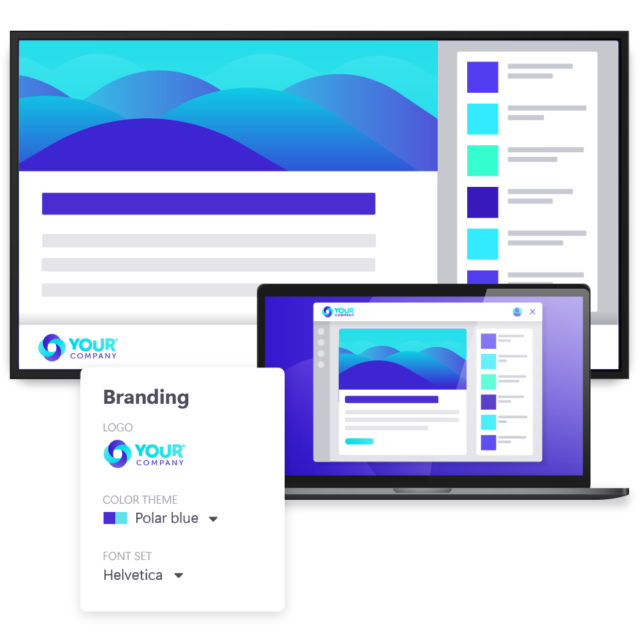
With the Signage Player for Windows, you run Digital Signage on any Windows device, such as a computer, mini PC, or media player, a good fit if your organization already has a Windows infrastructure or is centrally managing many screens across multiple locations. Already have a Windows device in place? Install the player directly. Setting up something new? Choose a PC or mini PC that fits your budget.
Android
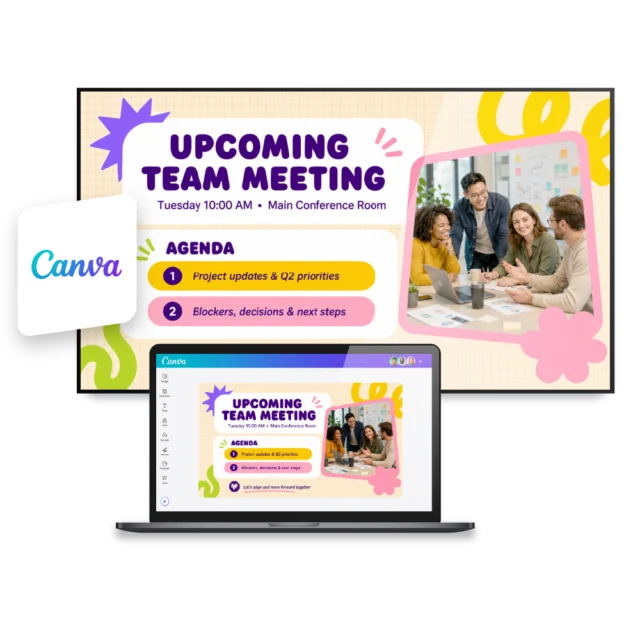
With the Signage Player for Android, you run Digital Signage on Android devices, such as Android TV, Google TV and AOSP, a good fit if you want something quick, affordable and simple to set up, especially with just a handful of screens. Already have a screen running Android TV or Google TV? Install the player directly. Any other screen? Connect a separate Android stick, such as a Google TV Streamer or Thomson Streaming Device.
Not sure which is best for you?
Windows or Android, existing hardware or something new: the right choice always depends on your specific situation. Talk to one of our experts, and we’ll help you decide what fits best.
How to get started
Netpresenter makes it easy to turn any screen into a professional Digital Signage screen. Installation is quick, and you don’t need help from IT to get started. See how you can get things up and running in three simple steps.
Connect your device
Connect your device to the screen, or connect the screen directly to the internet if it already has Android built in. A stable connection ensures your screen can always receive new content and stay up to date.
Install the Player
Download and install the Netpresenter Signage Player on your device. Once installed, it’s ready to receive and display the content you publish from the platform.
Pair and approve
Pair the device to your Netpresenter environment, then approve it, either manually or automatically with approval rules. Your screen goes live right away and you manage everything remotely from that point on.
Tips for placing your screens
Getting a screen live is only half the job: where you place it and how big it is determines whether anyone actually sees your message. We’re happy to help here too, not just with choosing devices, but with placement and sizing as well.


Netpresenter works with the hardware you already have
Run Digital Signage on the screens and media players you already have, and even on the Windows PCs and laptops your employees use every day. When a PC goes idle, it becomes a Digital Signage screen too, showing the same messages as your TVs, without buying expensive new hardware or extra devices to manage. This is Desktop Digital Signage: it extends your reach beyond TV screens, so you also reach people at their own desk, in the office, or at home.
Remote device management
Manage all your Digital Signage hardware centrally from one place, without travelling to a location. You see instantly which devices are online, what is playing and where attention is needed.


Netpresenter blog
Budget-Friendly Digital Signage Test
Your organization uses screens that cannot install apps because they are not smart, or because they are running outdated software. How can you still use Digital Signage without immediately investing in brand-new screens or expensive hardware? A compact Android player offers a solution. For a relatively low cost, you can make existing screens suitable for Digital Signage, without complex installations and without technical knowledge.





Some questions
already answered
Looking for more information? We’ve collected answers to the most frequently asked questions below. If your question is not listed, feel free to reach out, we’re happy to help!
What hardware do I need for Netpresenter Digital Signage?
You need a screen and a device that runs on Windows or Android. That can be a Windows PC or mini PC, or an Android smart TV, stick or box. You can also use existing Windows laptops and PCs. More about Digital Signage at Netpresenter is on our Digital Signage page.
What is a Digital Signage media player?
The media player is the device that plays your content on the screen, for example an Android stick or box, a mini PC, or a smart TV with the player built in. You install the Netpresenter Player on it.
Should I choose Windows or Android for Digital Signage?
Both work equally well; the right choice depends on your setup. Windows fits well if your organization already runs on Windows or manages many screens centrally. Android is a good fit for a quick, affordable setup, especially with just a handful of screens. Not sure what’s the best choice for your organization? We’re happy to help.
Do I need special screens, or does a normal TV work?
An ordinary television works, especially if the screen is only on during office hours. If the screen runs sixteen hours a day or longer, or hangs in bright light, a professional display is wiser. Those are built for continuous use and last longer.
Does Netpresenter work on Windows devices?
Yes. Netpresenter runs directly on Windows, so you stay within the Microsoft environment you already use. Check the Windows tech sheet for the system requirements.
Does Netpresenter work on Android devices?
Yes. Netpresenter runs on Android TV, Google TV and AOSP-supported devices. You use an Android screen with built-in support, or connect an external Android stick or box to a screen. Check the Android tech sheet for the system requirements.
Do I need to buy new hardware?
In most cases, no. If you already have screens, TVs or PCs, there’s a good chance they already work with Netpresenter. Starting from scratch? An affordable Android stick plugged into a TV gets you up and running fast.
Does the screen keep working if the network drops?
Yes. Content is stored locally on every device, so your screens keep playing what they last received. New content comes in as soon as the connection is back.
Can I manage all devices centrally?
Yes. You manage all your devices from one place: overview and status, groups, approval on rollout, Entra ID integration and per-device settings.
What would you recommend for my situation?
Every organization is different, and there’s no single setup that fits everyone. How many screens do you need, and across how many locations? Do you already have hardware in place, or are you starting from scratch? How will you handle deployment and rollout as you grow? And is your organization Microsoft-oriented, or more flexible in what you use? The right answer depends on questions like these, so rather than guess, we recommend a call with one of our experts so we can give you personal advice tailored to your situation.