


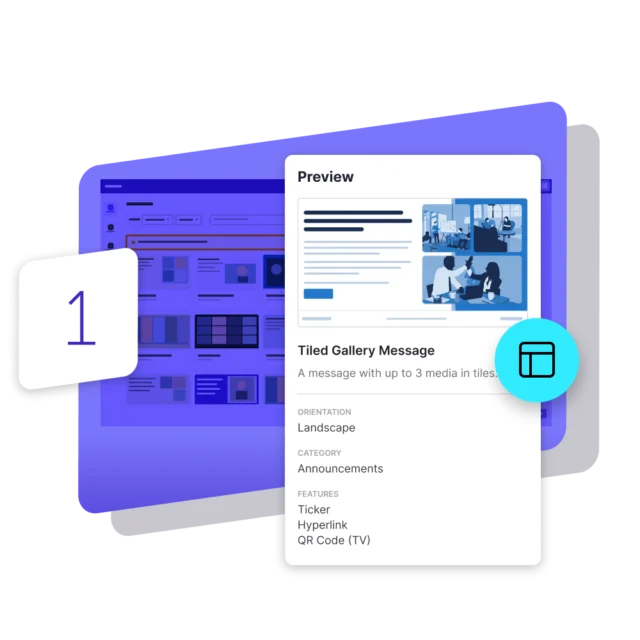
Choose Template
Start by choosing a template from our gallery. There are dozens to choose from, each made for a different purpose, such as an important announcement, a celebration or a slide that showcases photos. Your own corporate identity, with logo, colors and fonts, is applied automatically, so you need no design skills. That way every slide looks professional and on-brand on every screen.
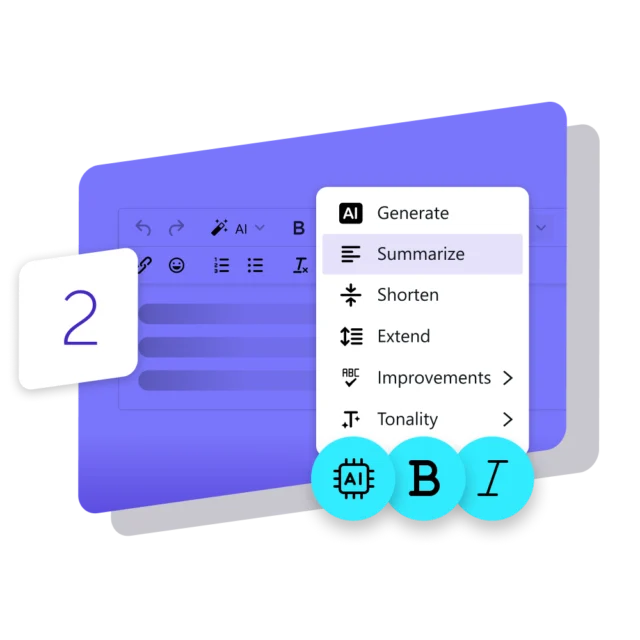
Create Content
Continue with the creation of your message. Give it a catchy title and add the text you want to share. Then make it stand out with media from the Asset Library, such as an image, video, GIF, stock photo, icon or YouTube video. When inspiration is missing, our AI Assistant helps you write the perfect message and fine-tunes its tone and readability. That way, your message is clear to your audience.
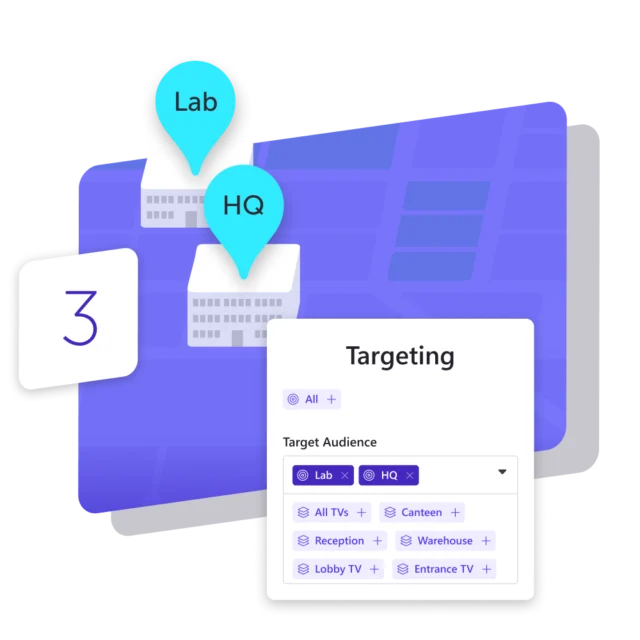
Target Slide
Next, decide where your slide should appear. You control everything from one place, so sending a specific message to a specific screen is really easy: choose one screen, a group of screens at a location or department, or a screen at an office on the other side of the world. You can also send it to all screens globally, instantly. It is up to you. That way, you create relevant content for different audiences.
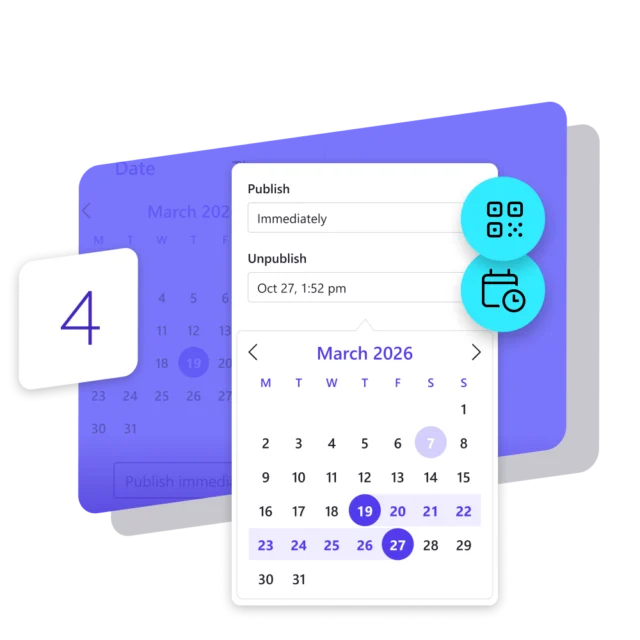
Set Options
Then you can add options to fine-tune how your slide is displayed. Set a specific time frame in which your slide must appear, with recurrence options for a weekly schedule. Adjust the priority when a message is more important, so it shows more often on a screen. Add a ticker with an RSS feed or a call-to-action with a QR code to send people to more information. That way, your message appears at the right moment and in the right way.

Publish to Screen
Finally, publish the slide to the screens you selected. You can first see a live preview, so you know exactly how your slide looks before you publish it. If you are satisfied with your creation, then hit the Publish button, and your slide appears on those screens instantly. The published slide will appear in the slide overview, where you can adjust it at any time.